How to auto-edit videos from Google Drive
Connect one Google Drive folder to Raw2Reel, once. From then on every video you put in that folder is picked up and edited by itself, and when you save a video, the finished file goes back into a Done & Ready folder inside it. It takes about a minute to set up, and this guide shows each step in screenshots.
The short version
Share a folder
In Google Drive, share a folder for your raw videos with hello@raw2reel.com as Editor.
Paste the link
In Raw2Reel, open Videos, tap Connect your Google Drive folder, paste the folder link and pick the language you speak.
Drop videos in
Each new video is edited by itself. Saved videos go into Done & Ready.
Step by step, in screenshots
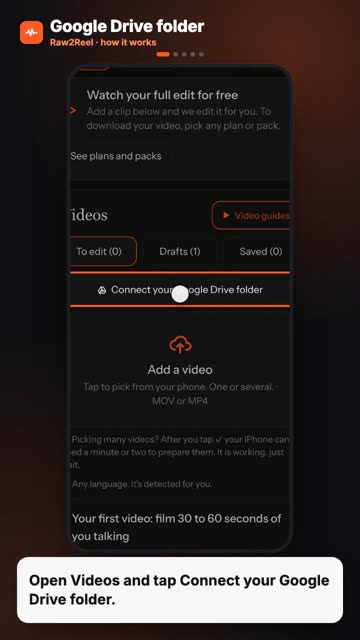
1. Open Videos and tap Connect your Google Drive folder.
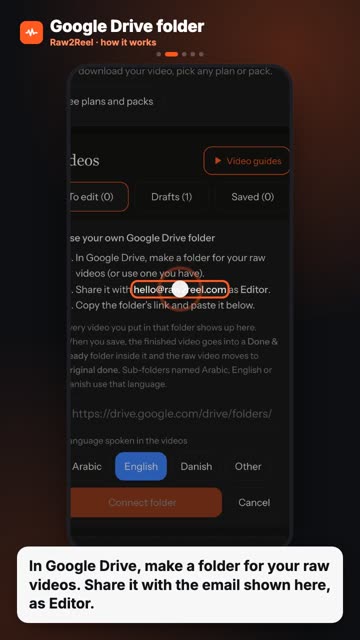
2. In Google Drive, make a folder for your raw videos, or use one you have. Share it with hello@raw2reel.com as Editor.
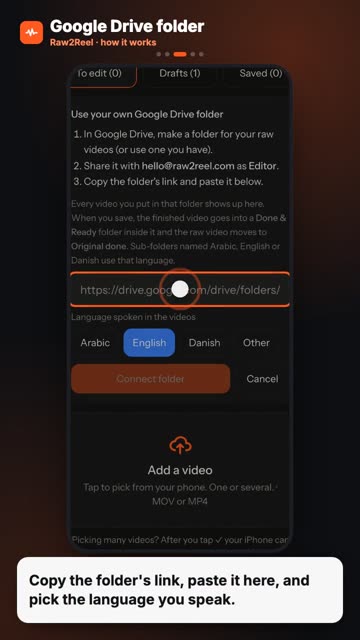
3. Copy the folder's link, paste it here, and pick the language spoken in the videos: Arabic, English, Danish or Other.
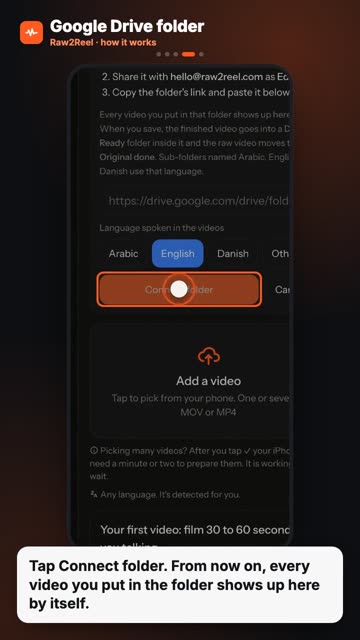
4. Tap Connect folder. From now on, every video you put in the folder shows up in Raw2Reel by itself.
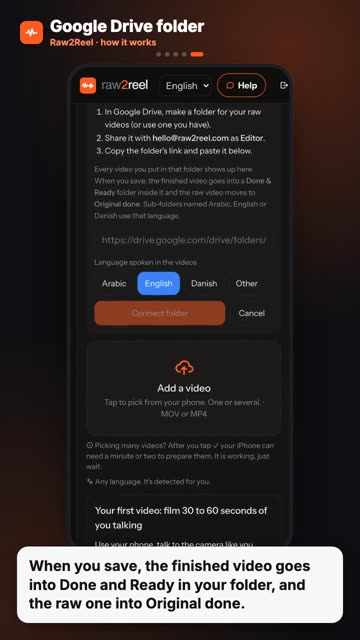
5. When you save a video, the finished file goes into Done & Ready inside your folder, and the raw one moves to Original done.
When a Drive folder beats uploading
Uploading from your phone is fine for one clip. A folder is better when the videos are big files from a camera, when someone else films and you edit, or when a team or an agency drops clips for several people. Everyone puts raw videos in one place, and the edits start without anyone opening the editor. More about the Google Drive connection.
Why Raw2Reel needs Editor access
Raw2Reel only sees the folder you share, not the rest of your Drive. It needs Editor rather than Viewer because it writes the finished video into Done & Ready and moves the raw file into Original done, so your folder stays tidy: raw videos waiting, finished ones ready to post.
Videos in more than one language
The language you pick when you connect is used for every video in the folder. If you film in several languages, make sub-folders named Arabic, English or Danish inside it: videos in a sub-folder use that language.
Check before you save
Each video in the folder gets the full edit: pauses and retakes cut, captions, music and b-roll. You still open it, watch it and change what you want, by tapping words in the transcript or typing in Ask the AI, before you save. Only saved videos go back to Drive, so nothing lands in Done & Ready that you didn't approve. How to cut the ums and pauses and how to change the captions cover the editing part.
Long recordings in the folder
A talking video longer than 3 minutes, like a podcast or a talk, comes back as 5 to 10 short clips, best first, each one edited. That makes a Drive folder a simple way to hand over full episodes. How long videos become clips.
What it costs
Videos picked up from Drive are edited and can be watched in full without paying and without a card. Saving one, which sends it to Done & Ready, needs a plan or pack, the same as any video: starter pack 5 videos for $12, monthly plan 15 videos for $15, yearly plan $120, or packs of 10 for $29 or 30 for $69. A video counts only the first time you save it. All prices.
More you can do with Raw2Reel
Questions
Can I auto-edit videos from Google Drive?
Yes. Connect a Drive folder to Raw2Reel once, and every video you put in it is edited by itself. Saved videos go into a Done & Ready folder inside it.
Which email do I share the folder with?
hello@raw2reel.com, as Editor. The exact address is also shown in the app when you tap Connect your Google Drive folder.
Can Raw2Reel see the rest of my Drive?
No. It only sees the folder you shared with it.
Where do the finished videos go?
Into Done & Ready inside your folder, when you save them. The raw video moves to Original done.
Can one folder hold videos in different languages?
Yes. Put them in sub-folders named Arabic, English or Danish, and each sub-folder uses that language.
Do I still need to open the editor?
To check and save, yes. The edit itself starts on its own; you watch it, change what you want and save.
Can I stop it later?
Yes. You can stop taking videos from the folder in Videos at any time.
Is it free?
Trying it is: videos from Drive are edited and you watch the full edit with no card. Saving a video back to Drive needs a plan or pack.