How to add word-by-word captions to Instagram Reels
Word-by-word captions are the ones where each word lights up as you say it. This guide shows the whole job in screenshots taken from the editor today, from the raw clip on your phone to a captioned Reel in your Photos, plus where to place the captions so Instagram's own text and buttons don't cover them.

The short version
Upload the clip
Open Raw2Reel in your phone's browser, tap Add a video and pick the clip. Tap Edit my Reel now.
Choose how the captions look
Tap Captions, pick a style, the colour of the spoken word and where the captions sit.
Fix a word, save, post
Tap a line to correct a name, then Download. The Reel lands in your Photos.
Step by step, in screenshots
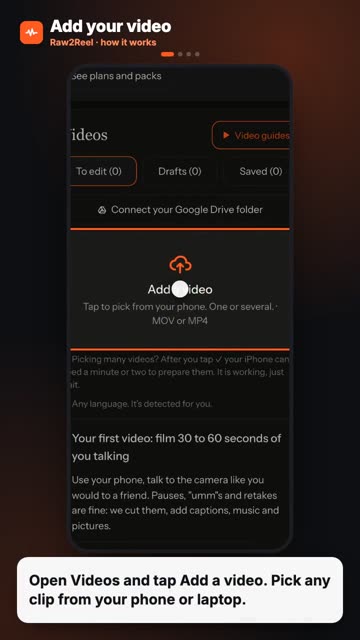
1. Open Videos and tap Add a video. Pick the clip from your camera roll, filmed vertically if you can.
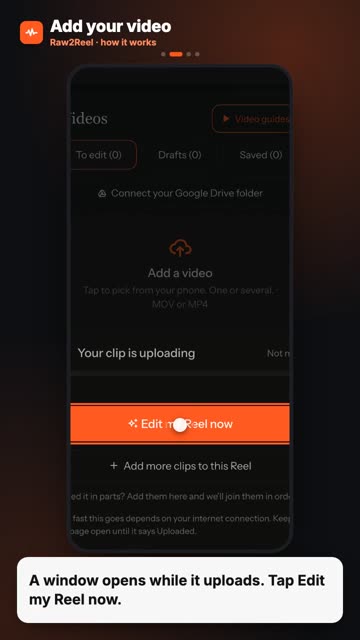
2. While it uploads, tap Edit my Reel now. About a minute later the first version is ready, with captions already on.
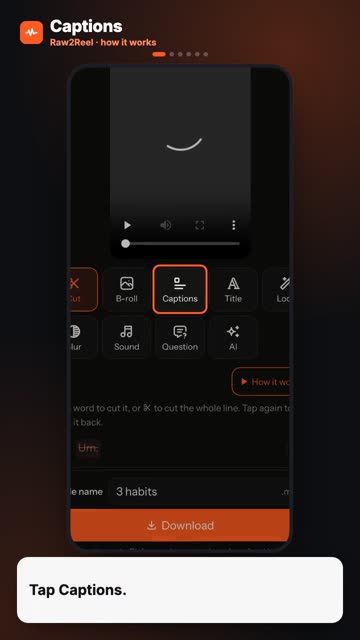
3. Open the video and tap Captions.
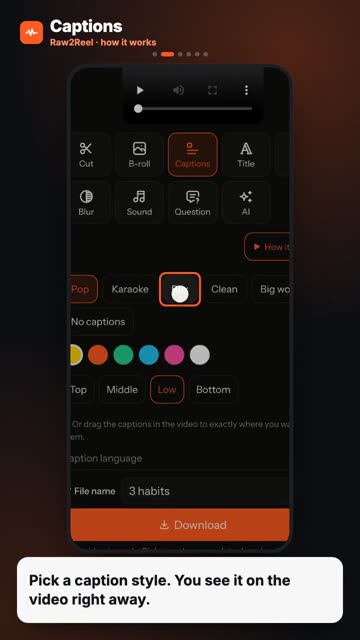
4. Pick a style. Pop, Karaoke and Big word are the word-by-word ones; you see the change on the video at once.
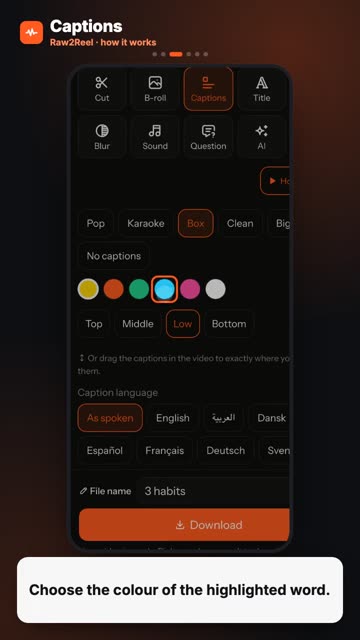
5. Choose the colour of the word being spoken. Pick one that stands out from your clothes and background.
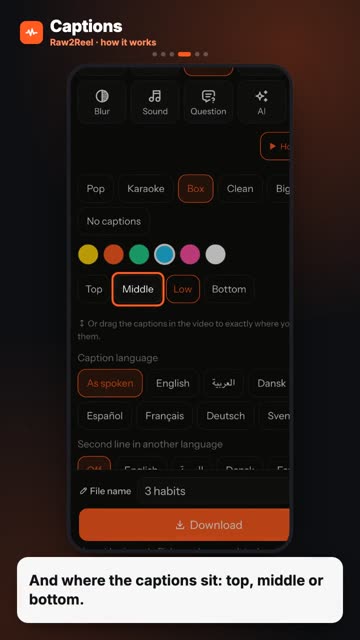
6. Choose where the captions sit: top, middle or bottom. On Reels, middle is the safe choice (see below).
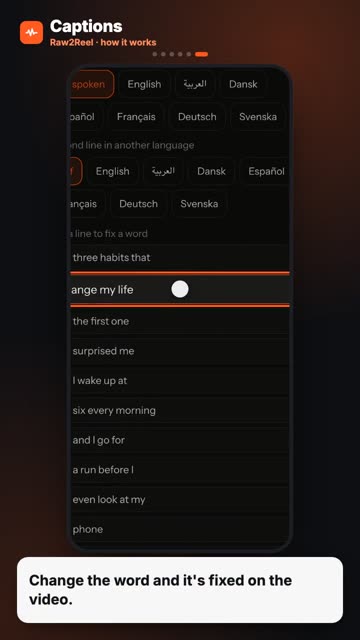
7. To fix a word, tap its line under Tap a line to fix a word, type it right, and the video updates by itself.

8. Tap Download under the preview and pick a plan or pack. Once the video is made, tap Save to my phone and Save Video. Open Instagram, tap +, choose Reel and pick it from your Photos.
Three ways to caption a Reel, and which one to pick
Instagram can add its own automatic captions. They cost nothing, but you can't choose how they look, they appear as plain lines rather than word by word, and viewers can switch them off. A timeline editor such as CapCut gives you full control, but you place, time and fix the captions yourself in each video. A one-button editor like Raw2Reel writes them word by word and burns them into the video for you, so they look the same for every viewer on Reels, TikTok and Shorts. If you post now and then and plain text is fine, Instagram's own captions are enough. If you post often and want the bold, highlighted look, burn them in.
Where to put captions so Instagram doesn't cover them
On a Reel, the bottom of the screen is taken by your name, the first lines of your post text and the audio line, and the like, comment and share buttons run down the right side. Captions placed low end up under that text. Put them in the middle, or just below your chin if you film yourself, and keep them away from the right edge. Watch the finished video once on your phone before you post: if a caption touches your face or the buttons, move it and save again.
Which style reads best
For fast talking clips, Pop (a few words, the spoken one in your colour) or Big word (one large word at a time) keep the eye moving. Box puts each line on a solid block, which helps on busy backgrounds like a street or a kitchen. Clean is quiet and suits calm topics. Whatever you pick, keep one style across your Reels so people recognise your videos. More about the five styles and Hormozi style captions.
Check names before you save
Speech recognition gets ordinary words right almost every time; the usual mistakes are names, brands and product words. Read the transcript lines once and fix those. It takes a few seconds, and a misspelled brand name is the thing viewers point out in the comments.
Captions in two languages
If your viewers speak more than one language, the captions can show a second line in another language, or the whole caption can be translated into one of 7 languages (English, Arabic, Danish, Spanish, French, German and Swedish). Your spoken language is recognised by itself from more than 90.
Add the captions before you post
Burned-in captions are part of the video file, so they go on before you upload to Instagram. A Reel that is already posted can't get burned-in captions afterwards; you would post the captioned file as a new Reel.
What it costs
Watching your full edit is free, with no card. To download it, the monthly plan is 15 videos for $15, or a pack of 10 for $29 or 30 for $69 with no subscription, all in Full HD with no mark. A video only counts when you save it.
More you can do with Raw2Reel
Questions
How do I add captions to Instagram Reels word by word?
Upload the clip to Raw2Reel, tap Edit my Reel now, then tap Captions and pick Pop, Karaoke or Big word. Each word lights up as you say it. Save the video and post it to Instagram as a Reel.
Can Instagram add captions to Reels automatically?
Yes, Instagram has its own automatic captions. You can't change their look, they are not highlighted word by word, and viewers can turn them off. Burned-in captions always show.
Where should captions go on a Reel?
In the middle of the screen, away from the right edge. The bottom is covered by your name, the post text and the audio line, and the buttons sit on the right.
Can I add captions to a Reel after posting?
Not burned-in ones: they are part of the video file, so you would post the captioned file as a new Reel.
How do I fix a wrong word in the captions?
Tap the line with the word under Tap a line to fix a word, type it correctly, and the video updates. You don't need to retime anything.
Do I need an app?
No. Raw2Reel works in the browser on iPhone and Android, and the saved video goes straight to your Photos.
Can I make captions like this for free?
You can make them and watch the full edit for free, with no card. To download the video, pick any plan or pack.
Will the same video work on TikTok and YouTube Shorts?
Yes. The captions are in the 9:16 video itself, so the same file shows them the same way on all three.